What Is Two-Factor Authentication? A Simple Guide to Keeping Your Accounts Safe
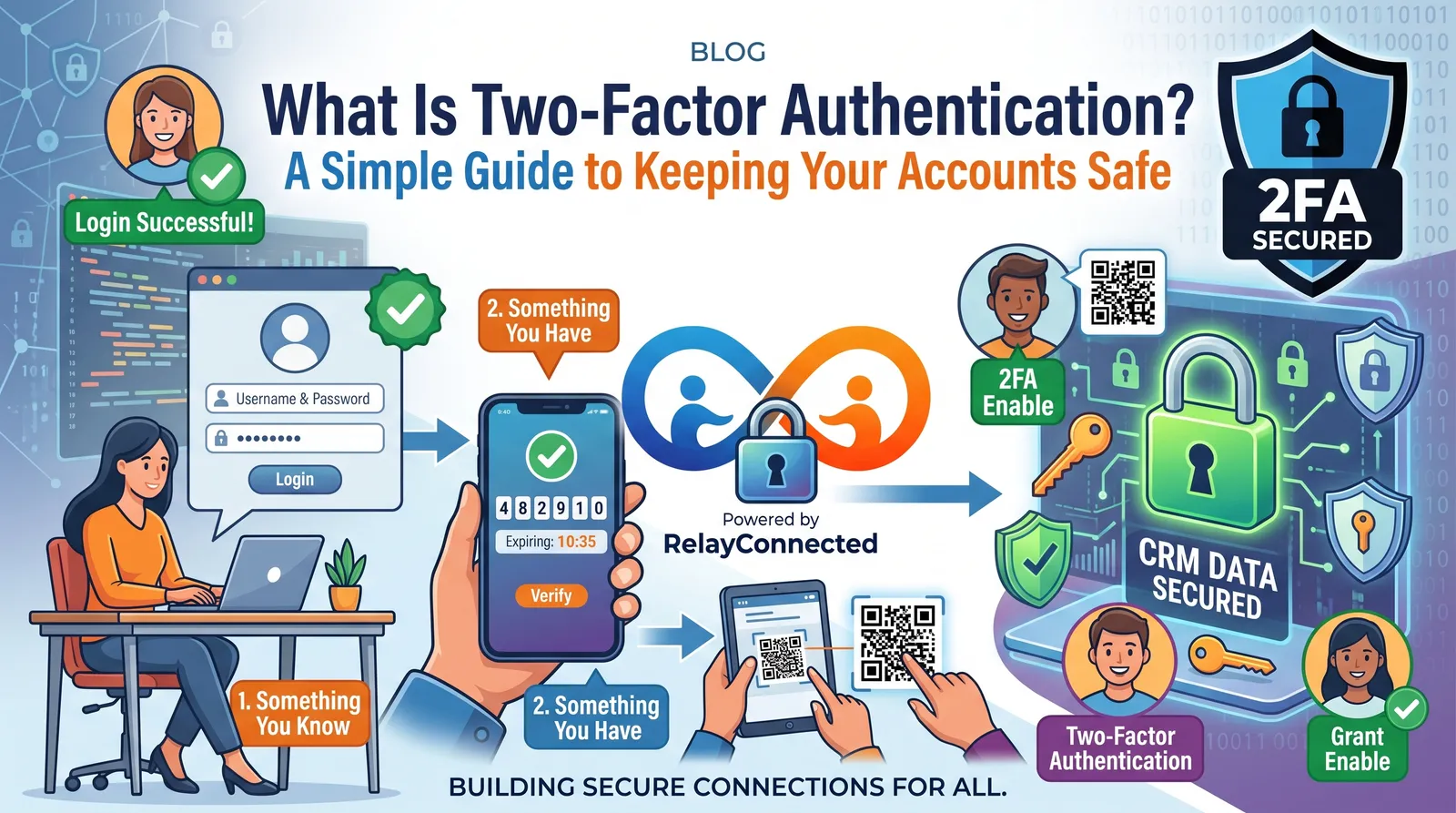
Have you ever logged into an account and been asked to enter a special code sent to your phone?
Perhaps you've received a notification asking you to approve a login, or your banking app has asked you to confirm it's really you.
That's two-factor authentication, often shortened to 2FA.
It might seem like an extra step when you're trying to check your emails, do some online shopping or log into your favourite website. But that little extra step can make a big difference to your online security.
Let's explain what two-factor authentication is, how it works and why it's worth switching on.
What Is Two-Factor Authentication?
Two-factor authentication is an extra layer of security that helps protect your online accounts.
Normally, when you log into an account, you enter your username or email address and your password.
With two-factor authentication enabled, you're asked to provide something else to prove it's really you.
Think of it like locking your front door.
Your password is the first lock. Two-factor authentication is an additional lock that makes it harder for someone to get inside, even if they've managed to steal your key.
For example, when signing into your email account, you might:
- Enter your email address.
- Type your password.
- Receive a code or login approval request on your phone.
- Enter the code or approve the request to complete your login.
That second check helps stop someone who knows your password from simply walking into your account.

Suggested image: A simple three-step diagram showing a person entering a password, receiving a verification request on their phone and successfully accessing their account.
Why Is Two-Factor Authentication Important?
You might be thinking, "I've already got a strong password. Isn't that enough?"
A strong, unique password is a great start, but passwords can still be stolen.
Cybercriminals use several methods to get hold of people's login details, including:
- Phishing emails: Fake emails that trick people into entering passwords on fraudulent websites.
- Data breaches: When information is stolen from a company or online service.
- Reused passwords: When someone uses the same password across several accounts.
- Malicious software: Software that can steal information from an infected device.
If someone manages to obtain your password, they may try to access your account.
But with two-factor authentication enabled, they'll usually need an additional verification method.
That extra barrier can help protect your emails, photos, personal information and financial accounts.
It's important to remember that 2FA isn't completely foolproof. Scammers can sometimes trick people into sharing verification codes or approving fraudulent login requests. However, it's still an important security measure.
Different Types of Two-Factor Authentication
Not all two-factor authentication methods work in exactly the same way.
Here are the most common types.
1. Text Message Verification Codes
This is one of the most familiar methods.
After entering your password, the website sends a one-time code to your mobile phone by text message.
You then enter that code to complete your login.
It's simple and convenient, especially for beginners.
However, text message codes can sometimes be intercepted or stolen through phone-number takeover scams. Where available, an authenticator app or security key is generally a stronger option.
2. Authenticator Apps
Authenticator apps generate temporary verification codes or help you approve login requests.
Examples include Google Authenticator and Microsoft Authenticator.
Instead of waiting for a text message, you open the app to get your code or respond to a verification request.
These apps can offer better protection against some attacks targeting text messages.

Suggested image: A phone showing a generic authenticator app with a six-digit verification code. Use a fictional example code, not a real active verification code.
3. Security Keys
A security key is a small physical device used to verify your identity when logging into supported accounts.
Some connect through USB, while others work using NFC technology.
Security keys that use modern phishing-resistant authentication standards can offer particularly strong protection against fake login websites.
They're especially useful for people who want extra protection for important accounts.
4. Login Approval Notifications
Some services send a notification to a trusted device when someone tries to log in.
You may see a message asking whether you're attempting to access your account.
If it's you, you approve the request.
If it isn't you, you reject it.
Important: Never approve a login request you didn't start, even if the notification looks genuine.
Which Accounts Should Have Two-Factor Authentication?
Ideally, you should enable two-factor authentication on every important account that supports it.
Start with:
- Email accounts: Gmail, Outlook and other email services.
- Banking and financial accounts: Especially where additional security options are available.
- Social media accounts: Facebook, Instagram and other platforms.
- Shopping accounts: Particularly those storing payment details.
- Cloud storage: Google Drive, OneDrive, iCloud and similar services.
- Business accounts: Work email, accounting software and other systems containing important business information.
Your email account is particularly important because it is often used to reset passwords for other services.
Protecting your email can help protect many of your other accounts too.
How Do You Turn On Two-Factor Authentication?
The exact steps depend on the website or app you're using, but the general process is similar.
Step 1: Open your account settings.
Sign in to the account you want to protect and look for a section called Settings, Security or Account Security.
Step 2: Find the two-factor authentication option.
It might be labelled Two-Factor Authentication, Two-Step Verification, Multi-Factor Authentication or 2FA.
Step 3: Choose your verification method.
Depending on the service, you may be offered an authenticator app, a security key, a text message code or another verification method.
Step 4: Follow the setup instructions.
The website will guide you through connecting your chosen method.
Step 5: Save your recovery options.
Some services provide backup or recovery codes. Store these somewhere secure, separate from the account you're protecting.
Step 6: Test your setup.
Make sure you understand how to sign in and how to recover access if you lose your phone.

Suggested image: A simple illustrated checklist showing Account Settings → Security → Two-Factor Authentication → Enable.
What Happens if You Lose Your Phone?
This is one of the biggest concerns people have about two-factor authentication.
What if your phone gets lost, stolen or broken?
The good news is that many services provide account recovery options.
Depending on the service, these may include:
- Backup recovery codes.
- A second registered device.
- Another configured authentication method.
- A backup security key.
- An official account recovery process.
Before you need them, make sure you've saved your recovery codes and checked which recovery methods are available.
Never share recovery codes with someone claiming to be from technical support.
Can Hackers Still Get Past Two-Factor Authentication?
Unfortunately, yes. No security measure can guarantee complete protection.
For example, criminals may create fake login pages that ask you for both your password and verification code.
They may also contact you pretending to be from your bank or another trusted organisation and ask you to read out a code.
Some attackers repeatedly send login approval requests, hoping you'll eventually approve one.
To reduce these risks:
- Never share verification codes with anyone.
- Never approve a login you didn't initiate.
- Use an authenticator app or phishing-resistant security key where appropriate.
- Avoid signing in through links in unexpected emails or messages.
- Keep your devices and apps updated.
- Use a different strong password for each account.
And remember, genuine support staff should not need you to disclose your one-time login codes.
What About Passkeys?
You might also have heard about something called a passkey.
A passkey is a newer way to sign in that can replace traditional passwords on supported websites and apps.
It may allow you to sign in using your device's fingerprint reader, face recognition or screen lock.
Passkeys use cryptographic technology that can offer strong protection against phishing.
They aren't exactly the same thing as traditional password-plus-code 2FA, but they're another important way to improve account security.
If a trusted service offers passkeys, they're worth learning about.
Five Simple Ways to Keep Your Accounts Safer
Here's a quick checklist you can start using today.
- Turn on two-factor authentication for your most important accounts.
- Use strong, unique passwords and consider a reputable password manager.
- Keep your recovery information safe so you can regain access if needed.
- Be cautious of unexpected login requests and never share verification codes.
- Keep your phone and computer updated to reduce security risks.
You don't need to be a technology expert to take these steps.
A few small changes can make your online accounts much harder for criminals to access.
Frequently Asked Questions
Is two-factor authentication free?
Many popular services provide two-factor authentication at no additional cost. Some specialist services or hardware security keys may involve a charge.
Do I need two-factor authentication every time I log in?
Not necessarily. Some services remember trusted devices and only ask for additional verification in certain situations, such as when you're signing in from a new device.
Is two-factor authentication the same as two-step verification?
The terms are often used interchangeably. Strictly speaking, two-factor authentication uses two different categories of authentication factors, while two-step verification may use two checks of the same type.
Can I use two-factor authentication without a smartphone?
Sometimes. Certain services support physical security keys, alternative trusted devices or other verification methods. Available options depend on the service.
Is two-factor authentication worth the extra effort?
Yes. For most people, the small amount of additional time needed to verify a login is a worthwhile trade-off for stronger account security.
Final Thoughts: A Small Step That Makes a Big Difference
Two-factor authentication might sound technical, but the idea behind it is simple.
It's an extra check that helps make sure the person logging into your account is really you.
Whether you're checking your email, managing your family's online accounts or running a small business, enabling 2FA is one of the most useful steps you can take to improve your digital security.
Start with your main email account, then work through your other important services.
And remember, you don't have to understand every technical detail to stay safer online.
Need a Helping Hand With Your Online Security?
If you're unsure how to enable two-factor authentication, secure your accounts or make sense of your security settings, we're here to help.
Our aim is to make technology easier to understand and safer to use, without complicated jargon.
Get in touch for friendly technology support and guidance.